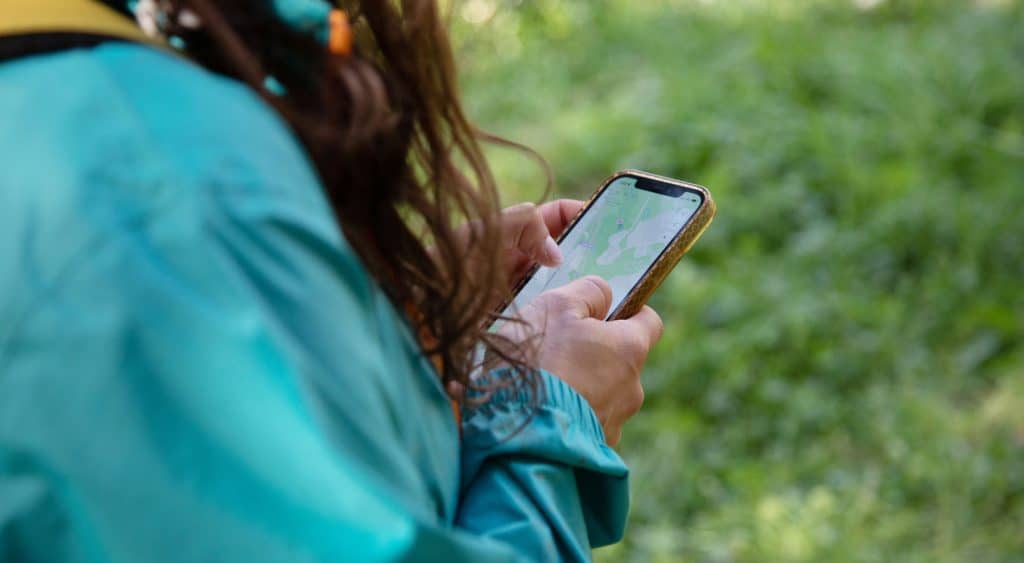
Give your phone settings a once-over before you leave home. Image: Getty
Smartphones have revolutionised the way we travel, and with nine out of 10 South Australians owning one, it’s safe to say there’s a phone in pretty much every traveller’s pocket.
Gone are the days of quick calls and creatively cramming everything you need to say into 160-characters SMS. Today’s phones are tiny supercomputers, with processing power and speeds faster than many desktop computers.
But left unchecked, they can also rack up enormous bills, drain your battery and leave you unable to phone home. So how do you make sure your phone is contributing not counteracting?
Here are seven features on your phone to check before switching to airport mode and taking off.
1. Download offline maps
Downloading offline maps before you go takes the stress out of getting lost in an unfamiliar country, saves you relying on slow (or non-existent) hotel or airport Wi-Fi, or being unexpectedly charged for data. Offline maps need no extra data once downloaded, work in coverage dead zones, use far less battery and help you avoid roaming fees. Even if you’re buying a local SIM, there’s no harm in having your maps ready as a backup.
Keep in mind, offline maps won’t give you real-time traffic and is designed for driving and walking routes rather than public transport.
Google Maps and Apple Maps are the most popular for offline navigation. Tap your profile picture, select Offline maps and choose your area. The more you zoom out, the more road information will be saved Keep zooming out to save the largest area; it takes up more space on your phone but it means that there’s a greater area of road information available to you.
And if you forget to delete the map once you’re home, don’t stress because most expire on their own.
Top tip: Keep Wi-Fi toggled on even in airplane mode. It won’t connect you to the internet, but it does give your phone access to better GPS positioning.
Download your maps. Image: Getty
2. Snap photos of your belongings
Describing to weary lost baggage desk staff how your black suitcase differs from all the other black suitcases isn’t a lot of fun. Showing a photo on your phone can help staff locate your bag much faster than a verbal description.
The same goes for other essentials like your wallet, camera and the details page of your passport. In the unfortunate instance you need to prove something is yours at an airport or police station, having a snap ready makes the process easier.
It’s also worth keeping digital copies of important documents stored safely as either files or photos to access quickly if you don’t have internet access, like travel insurance, car hire confirmations and accommodation bookings.
Top tip: Create a dedicated photo album or hidden album for these so you’re not scrolling through 16,981 pictures to find the one that matters.
3. Turn data roaming off
There are few reasons to leave data roaming switched on, so play it safe and toggle it ‘off’ before you fly. Data roaming lets your phone ‘borrow’ signal from a local network when your own provider has no towers nearby – there’s no Telstra in Tokyo, for instance. Email, web browsing, social media, streaming music and navigating maps (if you didn’t download them) can rack up fast.
With data roaming left on, your phone starts searching for a local signal the moment you switch off airplane mode, often auto-connecting and letting background apps sync to the cloud or download updates. This not only sends your bill skyrocketing, it can drain your battery in the process. There are two times you’d switch roaming on:
You’ve bought an international roaming pack or eSIM (like Airalo) for that destination.
It’s an emergency, you have no local SIM or roaming pack, and no Wi-Fi is available. It’s not guaranteed to work and is often slower than what you’re used to.
Top tip: Once you’ve switched roaming off, you can leave it off – even back home. In remote parts of Australia your device will simply connect to available domestic networks.
4. Check your mobile data settings
You’ve turned data roaming off, bought a 3GB data travel pack that should last the whole week and somehow, you’ve powered through all your data in the first day. How? The culprit is usually background activity, when apps quietly download updates, backup to the cloud and scan for new notifications.
Turning off mobile data entirely means your apps will only work over W-Fi, which is handy for stretching your data further but not so useful if you need something on the go. A better middle ground is to check your data usage settings and switch off background data for apps you won’t need while you’re away, then toggle them back on if you need.
Top tip: Adjust settings in apps like Instagram and YouTube to limit auto-playing in high definition, so your data can stretch further while scrolling on holiday.
5. Check if your SIM has restrictions
If your service provider’s international roaming add-ons suit your needs, you can skip this tip. However, if you’re planning to get a local SIM to make calls, receive texts and use data, then read on before holding up the queue at the airport arrivals hall SIM desk.
Some phones are ‘locked’ to a single carrier, meaning only a SIM from that provider will work. This is most common with phones bought on a bundle plan. The only fix is to contact your provider; a task much easier done at home.
To check, either try another SIM in your phone, or look in your settings for terms like ‘Service provider lock’, ‘Carrier lock status’ or ‘Mobile network state’. If it names a carrier like Telstra, Optus or Vodafone, your phone is locked and needs unlocking before you go.
Top tip: If your phone is newer, you can skip the airport SIM swap entirely by downloading a digital eSIM like Airalo before departure. Leave your physical home SIM in your phone, turn off its data roaming and your eSIM will be ready to connect the moment you land.
Are you getting a local sim when you travel? Image: Getty
6. Check your emergency contacts can be reached
Don’t be faced with a ‘not delivered’ error or dialling a complete stranger when calling or texting home.
Every country has a unique code to sort and direct international phone calls. Australia’s is +61. Even a number saved in your contacts beginning with the local ‘04’ will either fail to connect or you may end up chatting to someone else entirely.
Before you go, replace the leading 0 in your important contacts with +61. It’ll make no difference when you’re at home, but it’ll make for a smoother experience in a travel emergency.
Top tip: Set up an ‘In Case of Emergency’ (ICE) contact. If something happens and your phone is locked, emergency services can reach your people without needing your passcode.
7. Set up Find My Phone
Before you go, set up Lost Mode in the Find My iPhone app or make sure Find My Device on Android is switched on. If your phone goes missing, you can use another device to track its location remotely and lock it to keep your data safe.
You can even display a custom message on the lock screen such as a friend’s phone number and a reward if returned.
Top tip: Turn on ‘offline finding’ which is available in many newer smartphones. It uses nearby strangers’ Bluetooth signals to anonymously and securely relay your phone’s location – even if it’s switched off, has a drained battery, in airplane mode or has no data.
Ready to dial up adventure?
Our RAA travel experts can help you book your next trip of a lifetime.